温湿度計DHT11を用いた温湿度測定

今回はESP32を用い、一番簡単なセンサーによる温湿度の測定について紹介します。

ESP32はMicropythonにて簡単にプログラムを書くことができ、IoTには最適なデバイスです。今回はこれにDHT11という温湿度センサを接続し、温度と湿度を測定するプログラムを紹介します。

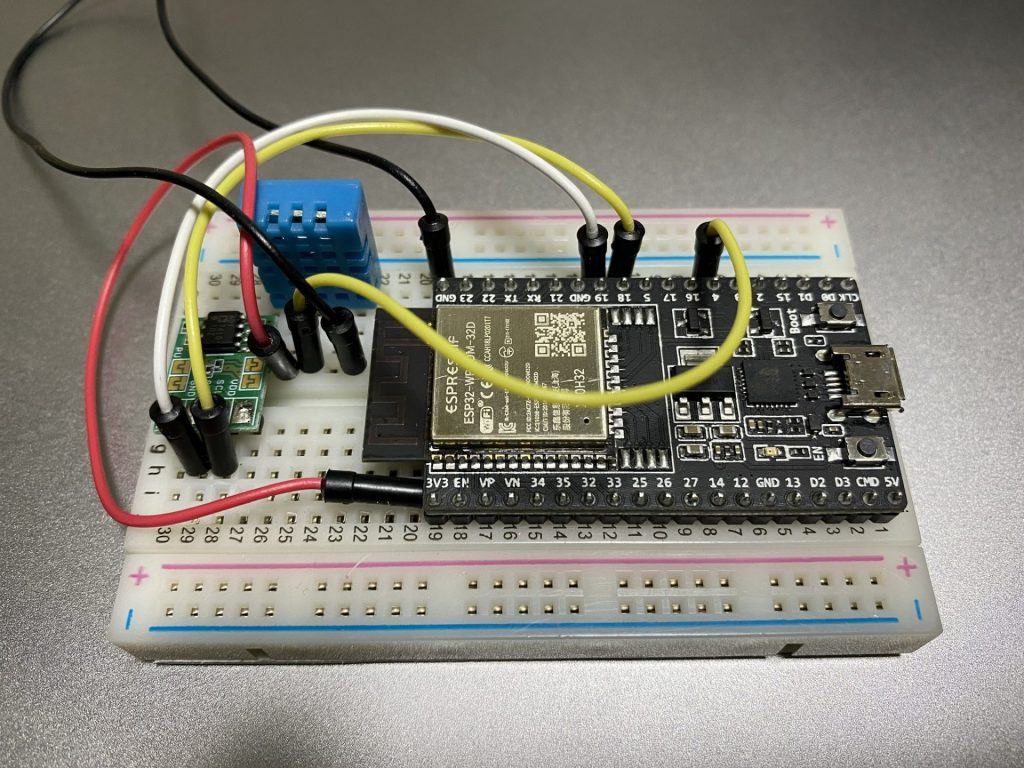
まずはブレッドボードを用いてESP32とDHT11を接続します(写真の青色のセンサです。左型のセンサは別途紹介します)。

写真のとおり左からVCC(3.3Vもしくは5Vに接続)、信号線(今回はピン4に接続)、一個飛ばして一番右のピンはアース(GND)に接続します。信号線は2ピンとワンワイヤーのセンサーとなります。参考資料はこちらです。https://akizukidenshi.com/download/ds/aosong/DHT11_20180119.pdf

ESP32ではDHT ドライバはソフトウェアで実装され、すべてのピンで動作するとのことで、Micropythonの公式ホームページhttps://micropython-docs-ja.readthedocs.io/ja/latest/esp32/quickref.html#dht-driverに書いてある例を用いて、動かしてみます。

>>> import dht
>>> import machine
>>>
>>> d = dht.DHT11(machine.Pin(4))
>>> d.measure()
Traceback (most recent call last):
  File "<stdin>", line 1, in <module>
  File "dht.py", line 17, in measure
OSError: [Errno 110] ETIMEDOUT

いきなりエラーです。DHT11の上記リンクにのせたプロダクトサービスをよく読むとI/Oは電源とプルアップした回路にしなさいと書いてあります。

プルアップ用の抵抗は持っていますが、ESP32のGPIOにはプルアップもソフト的に使えますので、そちらで対応です。

>>> import dht
>>> import machine
>>> from machine import Pin   #class Pinをインポート
>>>
>>> p4 = Pin(4, Pin.IN, Pin.PULL_UP)  #4番ピンをプルアップ
>>> d = dht.DHT11(machine.Pin(4))
>>> d.measure()
>>> print(d.temperature(),'C')
20 C
>>> print(d.humidity(),'%rh')
44 %rh

これで、温度と湿度が測定できます。(温度は少数点以下ありませんが・・・)

後日、精度高い温度計での測定をします。

Windows pip update

Pythonパッケージのインストールにはpipが使用されるが、久しぶりに使用したので、pip自体のアップデートを行った。

C:\Users\>python -m pip install --upgrade pip
Collecting pip
  Downloading https://files.pythonhosted.org/packages/fe/ef/60d7ba03b5c442309ef42e7d69959f73aacccd0d86008362a681c4698e83/pip-21.0.1-py3-none-any.whl (1.5MB)
    100% |████████████████████████████████| 1.5MB 51kB/s
Installing collected packages: pip
  Found existing installation: pip 19.0.2
    Uninstalling pip-19.0.2:
      Successfully uninstalled pip-19.0.2
Successfully installed pip-21.0.1

もともと入っていたpipのバージョン19.0.2から21.0.1までアップデートしました。相当サボっていたのがわかります。

ESP32のファームウェアアップデート

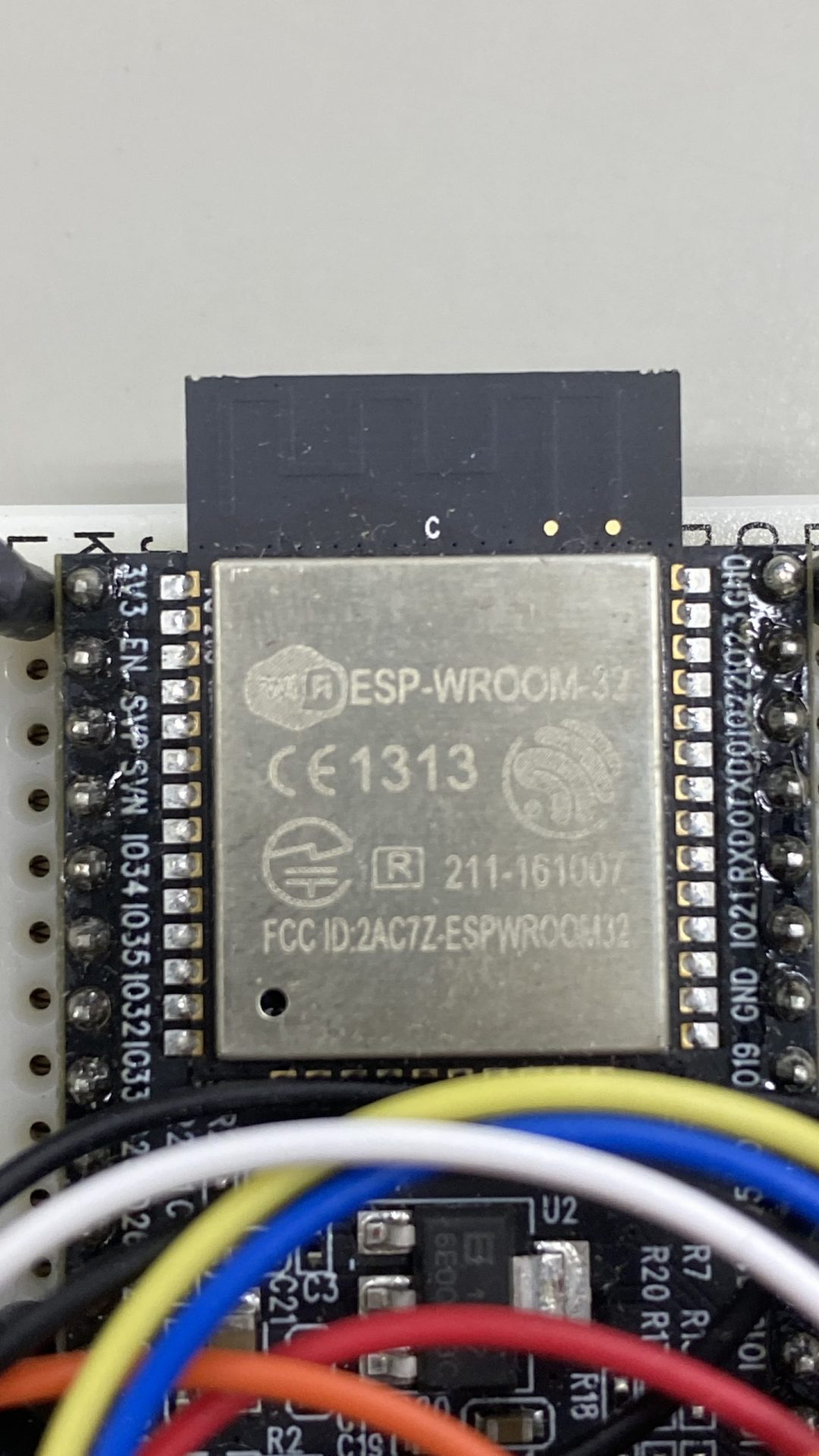
新品のESP32を仕入れてあったので、microPython仕様にするためファームウェアのアップデートをしました。ファームウェアについてはhttp://micropython.org/download/esp32/に最新版がありますし、アップデートの仕方も説明がしてあります。

まずは元から入っているファームを消去します。ファームの入れ替えはesptool.pyを使用します。今日はUSBのポートはCOM4です。

C:\Users\>esptool.py --chip esp32 --port com4 erase_flash
esptool.py v2.2
Connecting....
Chip is ESP32D0WDQ5 (revision (unknown 0xa))
Uploading stub...
Running stub...
Stub running...
Erasing flash (this may take a while)...
Chip erase completed successfully in 10.3s
Hard resetting...

次にあらかじめダウンロードしているファームウェアを書き込みます。

C:\Users\>esptool.py --chip esp32 --port com4 write_flash -z 0x1000 c:\micropython\esp32-idf3-20210202-v1.14.bin
esptool.py v2.2
Connecting.....
Chip is ESP32D0WDQ5 (revision (unknown 0xa))
Uploading stub...
Running stub...
Stub running...
Configuring flash size...
Auto-detected Flash size: 4MB
Compressed 1445632 bytes to 925476...
Wrote 1445632 bytes (925476 compressed) at 0x00001000 in 82.8 seconds (effective 139.7 kbit/s)...
Hash of data verified.

Leaving...
Hard resetting...

ampyで確認しようとしましたが、上手くいかず、TeraTermでシリアル接続してファームを確認しました。

ちゃんとファームウェアアップデートされています。

ts Jun  8 2016 00:22:57

rst:0x1 (POWERON_RESET),boot:0x13 (SPI_FAST_FLASH_BOOT)
configsip: 0, SPIWP:0xee
clk_drv:0x00,q_drv:0x00,d_drv:0x00,cs0_drv:0x00,hd_drv:0x00,wp_drv:0x00
mode:DIO, clock div:2
load:0x3fff0018,len:4
load:0x3fff001c,len:5008
ho 0 tail 12 room 4
load:0x40078000,len:10600
ho 0 tail 12 room 4
load:0x40080400,len:5684
entry 0x400806bc
MicroPython v1.14 on 2021-02-02; ESP32 module with ESP32
Type "help()" for more information.
>>>

上にあるように、help()コマンドをたたくと、一寸した例文が出ます。

>>> help()
Welcome to MicroPython on the ESP32!

For generic online docs please visit http://docs.micropython.org/

For access to the hardware use the 'machine' module:

import machine
pin12 = machine.Pin(12, machine.Pin.OUT)
pin12.value(1)
pin13 = machine.Pin(13, machine.Pin.IN, machine.Pin.PULL_UP)
print(pin13.value())
i2c = machine.I2C(scl=machine.Pin(21), sda=machine.Pin(22))
i2c.scan()
i2c.writeto(addr, b'1234')
i2c.readfrom(addr, 4)

Basic WiFi configuration:

import network
sta_if = network.WLAN(network.STA_IF); sta_if.active(True)
sta_if.scan()                             # Scan for available access points
sta_if.connect("<AP_name>", "<password>") # Connect to an AP
sta_if.isconnected()                      # Check for successful connection

Control commands:
  CTRL-A        -- on a blank line, enter raw REPL mode
  CTRL-B        -- on a blank line, enter normal REPL mode
  CTRL-C        -- interrupt a running program
  CTRL-D        -- on a blank line, do a soft reset of the board
  CTRL-E        -- on a blank line, enter paste mode

For further help on a specific object, type help(obj)
For a list of available modules, type help('modules')

OSのリリース情報とディレクトリ構造を表示したところ、boot.py出来ています。

>> import os
>>> os.uname()
(sysname='esp32', nodename='esp32', release='1.14.0', version='v1.14 on 2021-02-02', machine='ESP32 module with ESP32')
>>> os.listdir()
['boot.py']

再度コマンドプロンプトから、ampyを用いてリスト表示をしたら無事にboot.pyも表示されており、無事にmicroPython仕様になっていることを確認しました。

C:\Users\>ampy -p com4 ls
boot.py

AMPY–ESP32との通信方法

ESP32をMicroPythonで使用する際には、ファイルのアップロード、ダウンロード、削除などが必要になってくる。

AMPYはコマンドライン(Windowsではコマンドプロンプト)にて対話的に行える。

コマンドプロンプトでampyと入力すると下のような説明が出てくる。

C:\Users\>ampy
Usage: ampy-script.py [OPTIONS] COMMAND [ARGS]...

  ampy - Adafruit MicroPython Tool

  Ampy is a tool to control MicroPython boards over a serial connection.
  Using ampy you can manipulate files on the board's internal filesystem and
  even run scripts.

Options:
  -p, --port PORT    Name of serial port for connected board.  Can optionally
                     specify with AMPY_PORT environemnt variable.  [required]
  -b, --baud BAUD    Baud rate for the serial connection (default 115200).
                     Can optionally specify with AMPY_BAUD environment
                     variable.
  -d, --delay DELAY  Delay in seconds before entering RAW MODE (default 0).
                     Can optionally specify with AMPY_DELAY environment
                     variable.
  --version          Show the version and exit.
  --help             Show this message and exit.

Commands:
  get    Retrieve a file from the board.
  ls     List contents of a directory on the board.
  mkdir  Create a directory on the board.
  put    Put a file or folder and its contents on the...
  reset  Perform soft reset/reboot of the board.
  rm     Remove a file from the board.
  rmdir  Forcefully remove a folder and all its...
  run    Run a script and print its output.

当方のPC環境ではUSBがCOM3ポートになっているので、次のような使い方となる。

ESP32内のファイル表示する場合は -p com3(comポート番号) ls(ファイル表示)を入力する。

C:\Users\>ampy -p com3 ls
boot.py
test.py
main.py
ssd1306.py
hcsr04.py
temp.py
display.py
test3.py
test4.py
distance.py
test_ave.py
test5.py

ESP32上のファイルをPCにダウンロードする場合はgetコマンドを使用する。c:以下はダウンロードするディレクトリとファイル名

C:\Users\>ampy -p com3 get main.py c:\micropython\new\main1.py

ファイルをアップロードするにはputコマンドを使用する。

C:\Users\>ampy -p com3 put c:\micropython\new\main1.py
C:\Users\>ampy -p com3 ls
boot.py
test.py
main.py
ssd1306.py
hcsr04.py
temp.py
display.py
test3.py
test4.py
distance.py
test_ave.py
test5.py
main1.py

ファイルを削除する場合は、rmコマンドを使用する。

C:\Users\>ampy -p com3 rm main1.py

C:\Users\>ampy -p com3 ls
boot.py
test.py
main.py
ssd1306.py
hcsr04.py
temp.py
display.py
test3.py
test4.py
distance.py
test_ave.py
test5.py